
Warehouse Procedures

πŸ“¦ SHIPPING DEPARTMENT POLICIES & PROCEDURES MANUAL

Department Objective:
Ensure accurate, timely, and professional shipment of all customer orders, maintaining high standards of packaging, inventory management, and customer communication.

πŸ” STEP 1: IDENTIFY CURRENT WORK

Policy: Always continue the most recent or ongoing show before starting a new one.

  1. Check with previous shift shippers to determine the current show being worked on.
  2. If unclear, examine Gaylords or lids for show names and dates.
  3. If no current show is active:
    • Go to the designated show area.
    • Select the oldest show based on the date to begin working on.

πŸ“¦ STEP 2: SHOW BREAKDOWN PREP

Policy: Use designated equipment to efficiently prep shows for shipping.

  1. Use black racks to break down items.
  2. Place items in Gaylords to better organize and locate merchandise for the show.

πŸ–₯️ STEP 3: WHATNOT LOGIN & ORDER RETRIEVAL

Policy: All shipments are processed through Whatnot.

  1. Log into Whatnot.
  2. Navigate to the Shipments tab.
  3. Locate the show by date.
  4. Go to the Unfulfilled section.

🚫 STEP 4: CANCELATION CHECK

Policy: All cancelation requests are denied unless the item was falsely advertised.

  1. Review each shipment (max 50 at a time).
  2. Identify any cancelation requests (marked in red).
  3. Select and deny all unless false advertisement occurred.

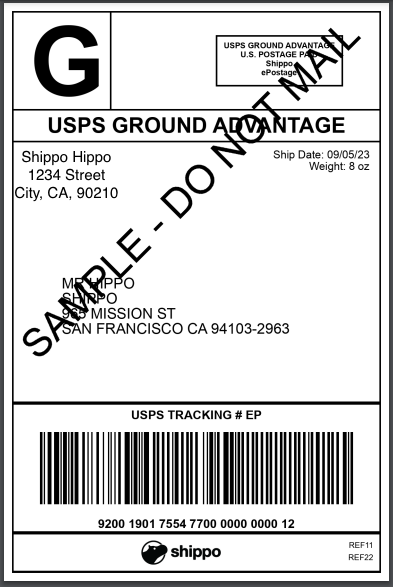
πŸ–¨οΈ STEP 5: GENERATE & PRINT SHIPPING DOCUMENTS

  1. Select all 50 orders using the checkmark on the left.
  2. Click Generate Labels (black button).
  3. Click Export Shipping Labels/Slips.
  4. Check both boxes for Shipping Labels and Packing Slips.
  5. Click View and Print PDF (or blue link if it doesn't auto-load).
  6. Print the documents and rip them apart carefully to avoid sticking.

πŸ“¦ STEP 6: LOCATE AND VERIFY ITEMS

Policy: Only verified items are to be shipped.

  1. Use product photos and video receipts (watch full 30 seconds) for accuracy.
  2. If clarification is needed, contact the streamer on Homebase.
  3. If an item cannot be found:
    • Find a comparable item.
    • Or skip and return to it later.

πŸ“« STEP 7: UNDERSTAND SHIPPING LABEL TYPES

General Packaging Rules:

πŸ“¦ STEP 8: SPLITTING SHIPMENTS (IF NEEDED)

Policy: Split orders must follow platform and USPS guidelines.

βœ… STEP 9: FINALIZATION

  1. After processing all 50:
    • Generate USPS Scan Forms.
    • Go to the right in grey to generate USPS scan sheet. Click generate and when it opens, take picture of barcode and send to appropriate personnel.
  2. Mark each of the 50 orders as Delivered in the Whatnot shipping dashboard.

🧾 GENERAL NOTES & POLICIES

Shipping Package Size

Scan forms and Dropping off orders

Scan forms and drop off process
Shipping Package Size

Guidelines for Mobile Pickup Orders

Customer has set item to Mobile Pickup
Generate and Print

Bulk Generate Labels with process and cancelation

How to Generate labels for shipping
Missing Items

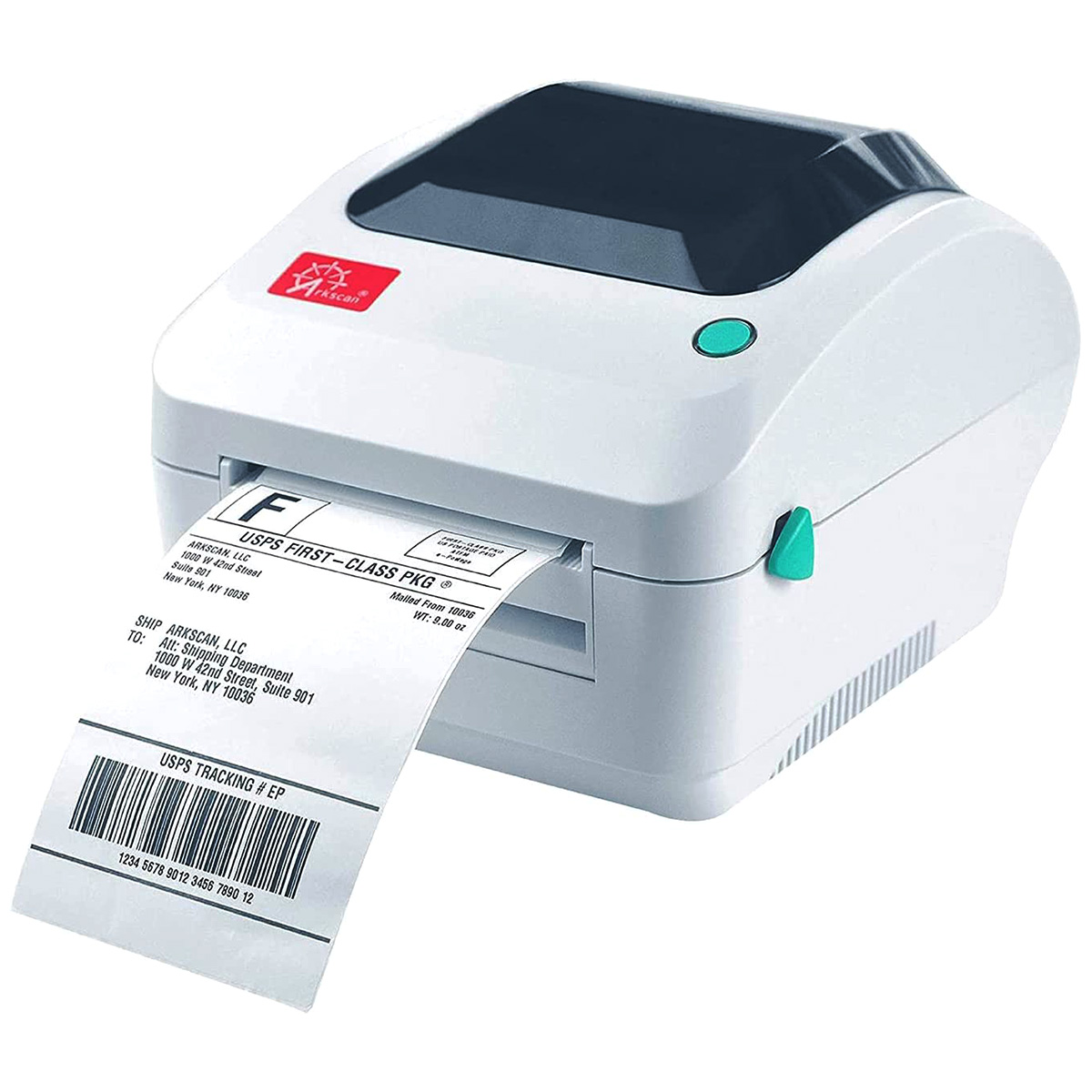
How to Reprint Labels

If you need to reprint labels
Shipping Package Size

Packaging Guidelines for Orders

What size of box should I use to ship this?
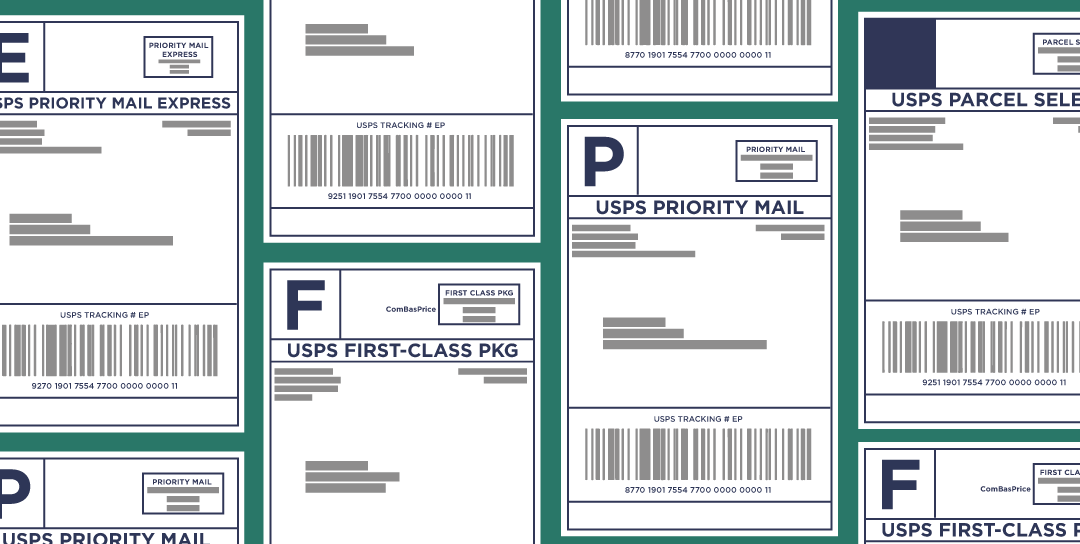
Label Types

Shipping Label Types

Understanding shipping label types

Label Types

Givies

Products given away during Stream Shipping Standards
Missing Items

Missing Items?

What to do if you are missing an item

Home

BACK TO HOME